Automatic Login (With Cookie List)
The Automatic Login feature lets you quickly switch between different Roblox accounts across all your instances using saved cookies. This is perfect for managing multiple farming accounts efficiently.
⚠️ Important Prerequisites
Before using Automatic Login:
- Each Roblox instance must already be logged in to some account first
- Cookie directories must exist on the Android system
- This is why you log into accounts on your main instance before cloning - it creates the necessary data directories
The cloning process preserves these directories, making cookie switching possible on cloned instances.
Getting Your Cookies
Using Cookie Extractor
The easiest way to get your Roblox cookies is with the Cookie Extractor tool:
Cookie Extractor (Get Account Cookies From Roblox Account Manager)
This tool extracts cookies directly from Roblox Account Manager, giving you a clean text file ready for automatic login.
Manual Cookie Format
If extracting manually, your cookies.txt file should look like:
_|WARNING:-DO-NOT-SHARE-THIS.--Sharing-this-will-allow-someone-to-log-in-as-you-and-to-steal-your-ROBUX-and-items.|_ABCD1234...
_|WARNING:-DO-NOT-SHARE-THIS.--Sharing-this-will-allow-someone-to-log-in-as-you-and-to-steal-your-ROBUX-and-items.|_EFGH5678...
_|WARNING:-DO-NOT-SHARE-THIS.--Sharing-this-will-allow-someone-to-log-in-as-you-and-to-steal-your-ROBUX-and-items.|_IJKL9012...
Each line should be one complete Roblox cookie.
Using Automatic Login
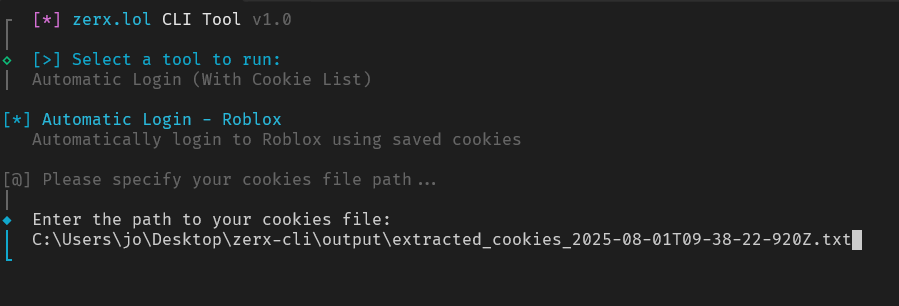
Step 1: Access the Feature
- Open Zerx and navigate to the main menu
- Select “Automatic Login - Roblox”
- Enter the path to your cookies file
Step 2: Device Detection
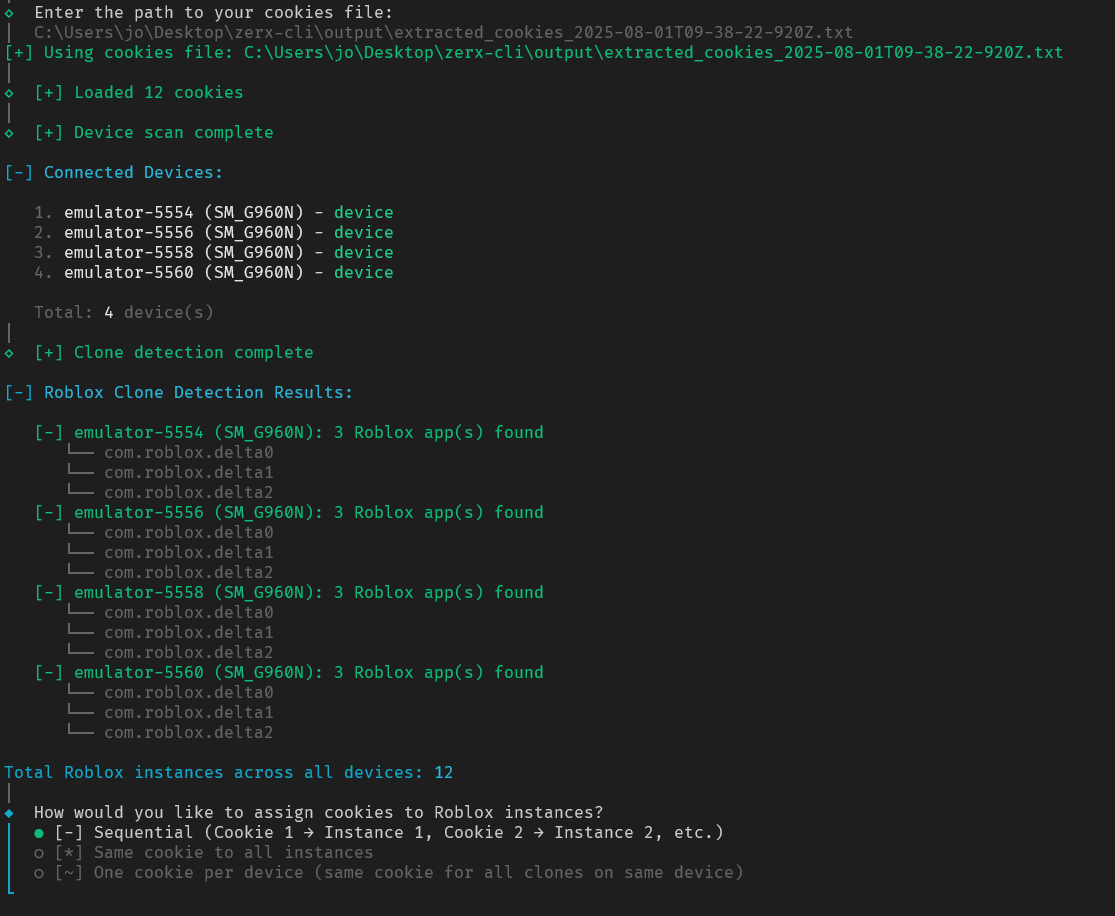
Zerx will automatically:
- Scan for connected devices
- Detect all Roblox instances (client, clones, etc.)
- Show you a summary of what was found
Step 3: Choose Login Mode
Sequential Assignment (MOST PEOPLE WILL USE THIS):
- Cookie 1 → Instance 1
- Cookie 2 → Instance 2
- Cookie 3 → Instance 3, etc.
- Best for: Different accounts on each instance
Same Cookie to All:
- Uses the first cookie for every instance
- Best for: Testing or using one main account everywhere
One Cookie Per Device:
- Same cookie for all instances on each device
- Different cookies for different devices
- Best for: Device-specific account management

Step 4: Confirm and Execute
- Review the summary showing instances and cookies to be used
- Confirm to proceed
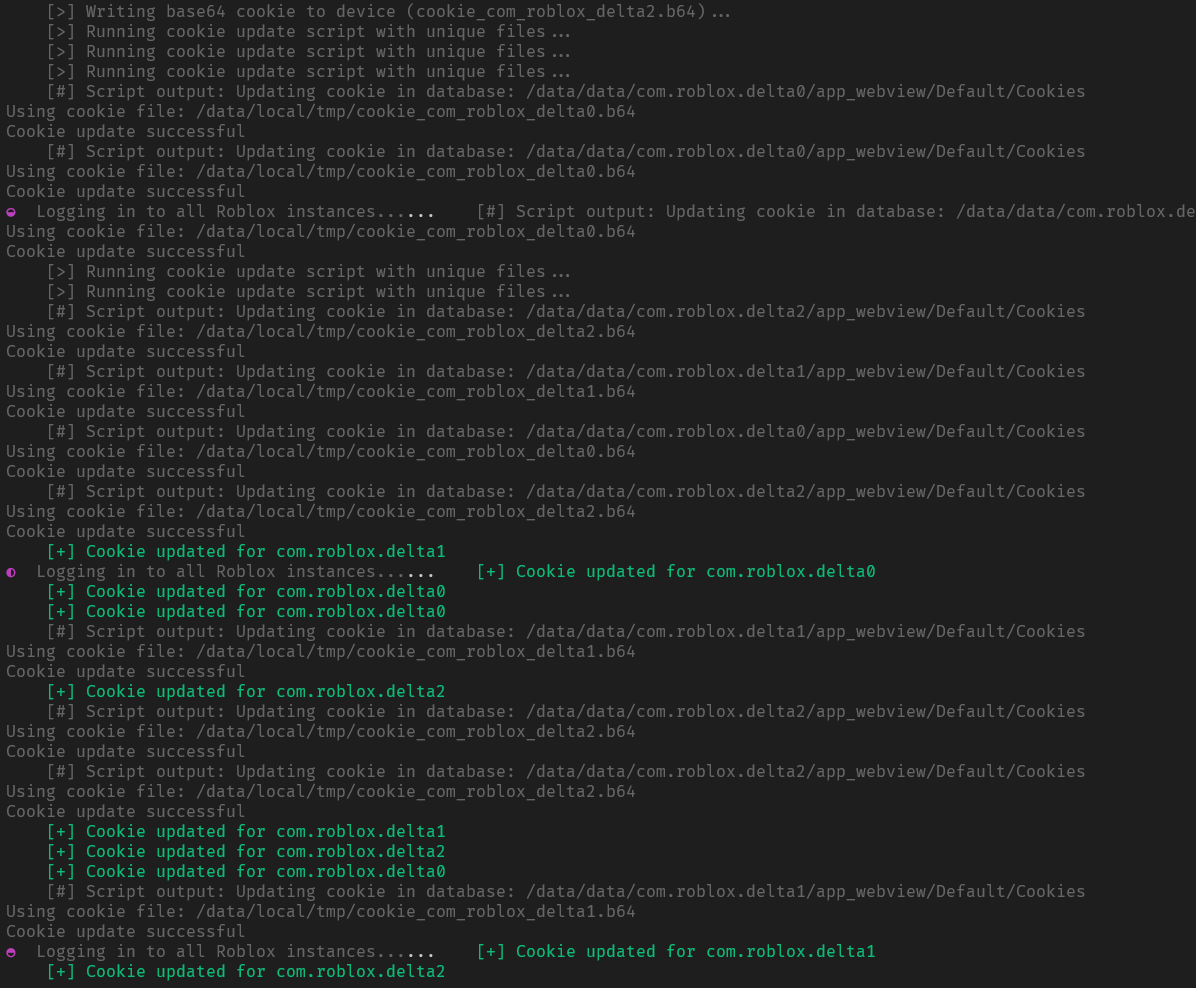
- Wait for the login process to complete
Login Results
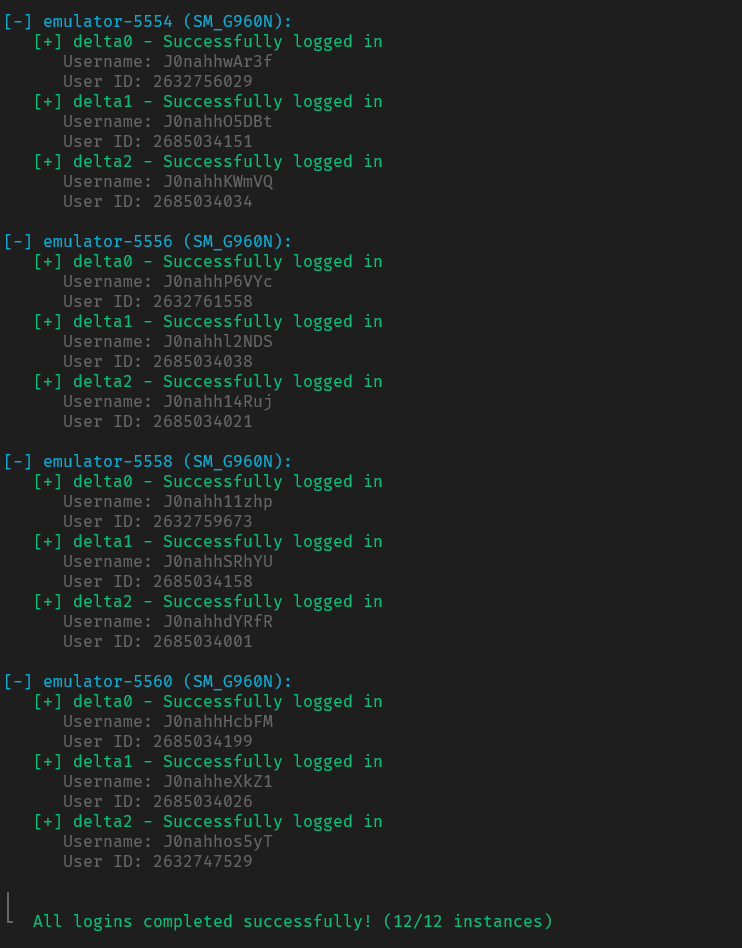
After completion, you’ll see detailed results:
Important Notes
Cookie Directory Requirements
Why you must log in before cloning:
- Android apps create data directories only when first logged in
- Cookie injection requires these directories to exist
- Cloning preserves the directory structure
- Without existing directories, cookie injection will fail
Cookie Security
Keep your cookies safe:
- Never share cookie files - they provide full account access
- Store cookies securely on your local system
Troubleshooting
“Cookie database not found” errors:
- The Roblox instance was never logged in before
- Log into the instance manually first, then try again
“Invalid cookie” errors:
- Cookie may be expired or malformed
- Re-extract the cookie using Cookie Extractor
- Check that the cookie is complete (very long string)
“Injection failed” errors:
- Device may not have root access enabled
- Roblox Instance may still be running (it should be auto-stopped)
- Try restarting the device and attempting again
Best Practices
Before Using Automatic Login
- Set up your main instance with all desired Roblox apps
- Log into each Roblox app manually at least once
- Clone your instances to preserve the login directories
- Extract your cookies using the Cookie Extractor tool
Need Help?
Common issues:
- Make sure you’ve logged into instances manually before cloning
- Verify your cookies file format is correct
- Check that devices have root access enabled
- Ensure Roblox instances aren’t running during injection
Join our Discord community for help